
Jacob Morrow
Updated: 2026-07-20
A customer just messaged your business on WhatsApp, but you're at your desk, not your phone. By the time you pick it up, they've moved on to a competitor. WhatsApp Business Web solves this problem. It mirrors your WhatsApp Business account in your browser, so your team can respond to inquiries, send quick replies, and manage customer conversations directly from a desktop. According to DemandSage's WhatsApp statistics report (2026) , WhatsApp now reaches more than 3 billion users worldwide, which makes every desk-side delay expensive. This guide walks through setup on browser and desktop, the features and hard limits of the free tool, and the point where a WhatsApp Business API becomes the better fit.
Last updated: July 2026
What Is WhatsApp Business Web? Features, Limits, and Use Cases
Quick definition
WhatsApp Business Web is the browser-based version of the WhatsApp Business app. It lets you perform the same actions you would on your mobile phone, directly from your computer browser, by linking the browser as one of up to 4 companion devices.

With WhatsApp Business Web, you can read and continue conversations, answer customer inquiries, and showcase your brand from a larger screen. It runs as a linked device: since WhatsApp moved to a multi-device architecture, your browser session keeps sending and receiving messages even while your phone is offline, as long as the phone reconnects at least once every 14 days.
Differentiation from Regular WhatsApp Web
Why use WhatsApp Business Web instead of regular WhatsApp Web? The standard WhatsApp app, in both its mobile and web versions, is tied to a personal account. The Business version is purpose-built for commercial use, offering features like quick replies, automated greetings, contact labels, and a public business profile that regular WhatsApp does not support. Both versions link to your computer the same way, so the setup steps below apply to either.

Applicable Scenarios and Industries
WhatsApp Business Web fits a wide range of industries. The same DemandSage report counts more than 200 million businesses using WhatsApp Business globally, with the heaviest adoption among small to medium-sized companies.
WhatsApp Business Web is ideal for:
- Small retail shops managing customer orders and product inquiries,
- E-commerce businesses offering product support and shipping updates,
- Service providers like salons, home repairs, and tutors scheduling appointments,
- Customer support teams handling inquiries across time zones.
Key Features of WhatsApp Business Web
One of the main reasons for using the WhatsApp Business desktop app is access to several business-specific features:
- Business Profile: Add your business address, a short description, your email, and a link to your website.
- Quick Replies: Set up frequently sent messages as shortcuts. This saves significant time when answering common customer questions.
- Automated Greetings and Away Messages: Configure automated responses even when your support team isn't available, ensuring customers receive timely acknowledgment.
- Contact Labels: Organize your customers using labels for better segmentation, for example "New Customer," "Pending Payment," or "VIP."
However, WhatsApp Business Web also has clear limitations. If your team is growing or your messaging volume is increasing, you may need a more scalable solution like a WhatsApp Business API .
The key limitations of WhatsApp Business Web include:
- It supports up to 4 linked devices, and all of them unlink automatically if your primary phone stays offline for more than 14 days.
- Every linked device shares one identity: there is no per-agent login, assignment, or record of who answered which customer.
- There are security concerns when accessing the app through a public or shared computer.
- It does not support CRM or third-party tool integration.
- Message history syncs from the phone where the app is installed; a lost or reset phone still means disruption.
How to Set Up WhatsApp Business Web in 4 Steps (Browser and Desktop)
Setting up WhatsApp Business Web takes under five minutes, whether you use the browser version or the desktop app. The only prerequisite is a WhatsApp Business account registered on a dedicated number; if you are still setting that up, start with our WhatsApp Business number guide , then come back to link your desktop.
Setting Up WhatsApp Business Web in Your Browser
Here is how to access your WhatsApp Business account from any browser:
Step 1. Go to web.whatsapp.com on the browser of your choice. A QR code appears and refreshes periodically, so leave the tab open.

Step 2. Download the WhatsApp Business app from the Play Store or the App Store if it is not on your phone yet. Once it has been downloaded, launch the app and sign in to your business account.

Step 3. Tap the three-dot menu or Settings, then go to Linked Devices and tap "Link a device" . Your phone camera opens so you can scan the QR code displayed on your computer screen.

Step 4. Once connected, your chats and contacts sync to the browser within a few seconds. If the QR scan fails, refresh the code, check that both devices have network access, and update the app before relinking.
Pro tip
After connecting, immediately set up your Quick Replies and Away Messages from the desktop. These two features alone can reduce your average response time by handling the most common customer questions automatically.
Using WhatsApp Business Web for PC (Windows / macOS)
The WhatsApp Business desktop app for Windows and macOS offers the same functionality as the browser version but tends to be more stable for extended use: it keeps native desktop notifications, survives browser restarts, and does not compete with a dozen other tabs for memory.
The connection steps are similar to the browser version:
For Windows:
Step 1. Visit the WhatsApp Download Page and download the WhatsApp Business app from the Microsoft Store.

Step 2. Install the app on your PC and click the "Get Started" button.

Step 3. You will see a QR code on screen to complete the WhatsApp Business web login.

Step 4. Open WhatsApp Business on your phone, go to Linked Devices , and tap "Link a device" . Scan the QR code to complete the login.
For macOS:
Step 1. Download the macOS version of the desktop app from the same download page linked above.

Step 2. Install and launch the application on your Mac. You will see a QR code for linking your account.
Step 3. Open WhatsApp Business on your mobile, go to Linked Devices , and scan the QR code to complete the login on your Mac.
Step 4. Wait for the sync to complete. Your conversations and contacts will appear on your desktop within seconds.
WhatsApp Business Web: 5 Pros and 4 Cons You Should Know
Setting up WhatsApp Business Web is as simple as scanning a QR code. But before you commit to it as your primary customer communication tool, here are the key advantages and trade-offs to consider.
Pros
- ✓ Easy to set up, ready in under 5 minutes.
- ✓ Completely free with no additional costs.
- ✓ Includes basic automation (quick replies, away messages) and contact management.
- ✓ Accessible from up to 4 linked devices, and they keep working while your phone is offline.
- ✓ Full feature parity with the mobile app on desktop and browser.
Cons
- ✗ No advanced automation: no custom workflows or drip sequences.
- ✗ No analytics or message performance reporting.
- ✗ Limited scalability: no bulk messaging or broadcast lists beyond 256 contacts.
- ✗ No CRM integration or third-party tool connectivity.
When to Upgrade from WhatsApp Web to a Business API Solution
WhatsApp Business Web works well for solo operators and very small teams. But as your customer base grows, its shared-identity design and lack of automation become bottlenecks. If you need multi-agent support, CRM integration, or automated campaigns built on template messages sent through the API , it is time to consider a WhatsApp Business API solution.

What a WhatsApp Business API Offers Beyond Web
A WhatsApp Business API delivers scalable, enterprise-grade messaging that the web or desktop app cannot replicate. Here is what shifts the moment you upgrade:
5 capabilities Web does not have
- Full workflow automation: drip sequences, event-triggered messages, and lifecycle journeys that cut response time from hours to seconds.
- Multi-agent shared inbox: multiple team members handle conversations simultaneously, with assignment and handoff context preserved.
- Analytics and reporting dashboards: delivery rates, response times, and engagement metrics for ongoing optimization.
- Enterprise security and compliance: end-to-end encryption plus GDPR compliance (as of March 2026) for regulated industries.
- Scalable infrastructure: volume support beyond the 256-contact broadcast cap, with no dependency on a phone connection.
Platforms like EngageLab , an official Meta Business partner, provide these capabilities through a no-code workflow builder, so non-engineering teams can automate WhatsApp journeys without writing code.
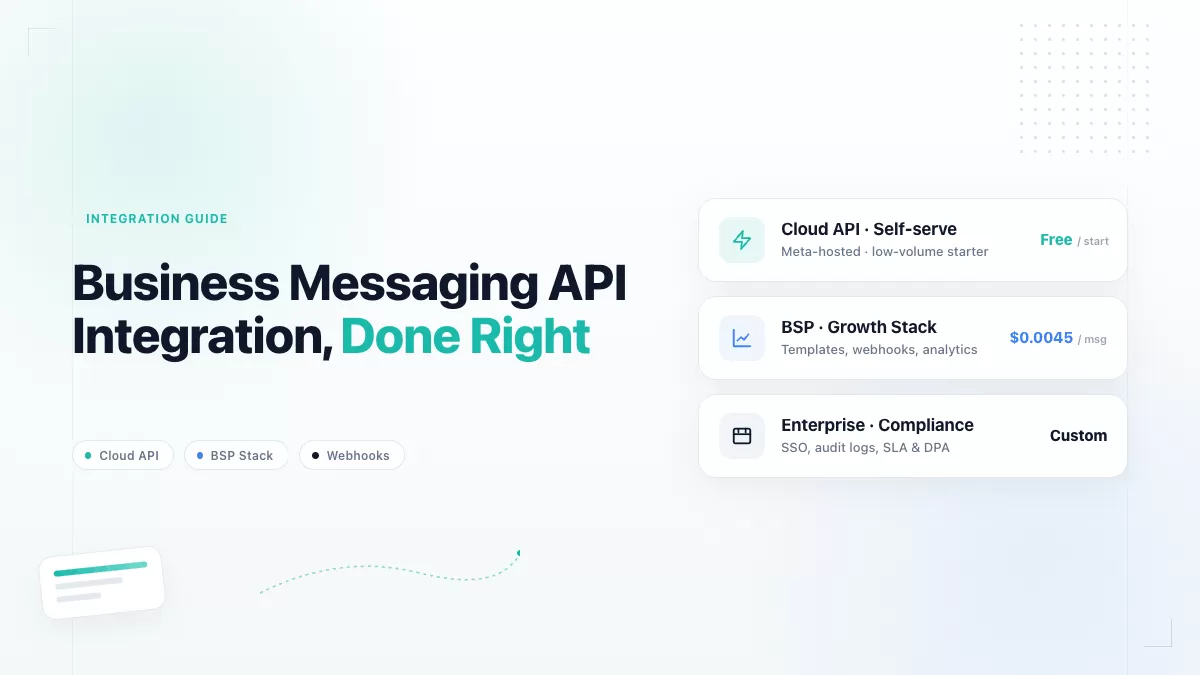
One planning note before you commit: unlike the free Web tool, API messaging is billed per delivered template message, with rates set by message category and destination country. Model your monthly volume against the current rate card in our WhatsApp Business API pricing guide before choosing a provider plan.
Best fit when:
- You have 5+ team members handling customer messages and need a shared inbox.
- You want to trigger WhatsApp messages from CRM events, orders, or in-app behavior.
- You need delivery analytics and compliance reporting for regulated workflows (finance, insurance, healthcare).
Who Benefits from a WhatsApp Business API Solution?
A WhatsApp Business API is versatile enough to serve multiple industries. Here are the most common use cases:
- Customer Service Teams: Multiple agents can manage and respond to WhatsApp messages from a shared inbox, eliminating delays and reducing missed messages.
- E-commerce Stores: Automate order confirmations, shipping updates, and cart abandonment reminders. Send targeted promotional messages based on customer behavior using custom contact lists.
- Financial Services and Insurance: Send sensitive information such as account alerts, OTP codes, and policy reminders securely through encrypted channels.
- Logistics and Delivery: Automate real-time delivery notifications, pickup confirmations, and status updates to keep customers informed throughout the shipping process.
WhatsApp Business Web/Desktop vs. WhatsApp Business API
Use this table to check which side of the line your team sits on today:
| Feature | WhatsApp Web/Desktop | WhatsApp Business API (e.g. EngageLab) |
|---|---|---|
| Dependence on Mobile Phone | Phone must reconnect at least every 14 days | No |
| Multi-Agent Support | No (one shared identity across devices) | Yes |
| Automation Features | Limited (quick replies, away messages) | Full Marketing Automation |
| Analytics Reports | No | Yes |
| CRM Integration | No | Yes |
| Customization | Minimal | Highly Customizable |
| Enterprise Security and Compliance | Standard encryption | Enterprise-grade + GDPR |
| Technical Support | FAQ section only | Dedicated Support Team |
WhatsApp Business Web FAQ: Team Size, Security, and Mobile Dependency
Can WhatsApp Business Web Completely Replace the Mobile App?
No. You still need the mobile app to register your number and manage core account settings. Day to day, though, the dependency is looser than most guides claim: according to WhatsApp's linked devices documentation (2026) , linked devices keep sending and receiving messages even when your phone is offline. The one hard rule is that your primary phone must come online at least once every 14 days, or WhatsApp automatically unlinks every device.
What Team Size Is WhatsApp Business Web Suited For?
WhatsApp Business Web supports up to 4 linked devices (as of July 2026), making it suitable for individuals or very small teams of up to 5 people. For larger teams that need concurrent access, shared inboxes, and role-based permissions, an API solution like EngageLab's WhatsApp API is a better fit.
Can I Use WhatsApp Business on Multiple Devices?
Yes, on up to 4 linked devices (browsers, desktops, or tablets) alongside your primary phone. All of them share the same business identity, so two colleagues can reply from two computers at once, but nothing records which agent handled which conversation. The account also stays tied to a single phone number; teams that need separate agent logins or several numbers under one workspace have outgrown the linked-device model.
How Secure Is WhatsApp Business Web?
WhatsApp Business Web uses end-to-end encryption for messages, the same standard as the mobile app. However, it does not offer enterprise-grade compliance features (such as GDPR audit logs or data residency controls) that regulated industries typically require. For those needs, a WhatsApp Business API with built-in compliance tools is recommended. See the WhatsApp API documentation for details.
Key Takeaways: Choosing the Right WhatsApp Business Solution
WhatsApp Business Web is a solid starting point for small businesses that need a free, easy-to-use tool for customer communication on desktop. Setup takes minutes, and core features like quick replies and contact labels cover the basics.
But as your messaging volume grows and your team expands, the limitations become clear: no per-agent accountability, no automation workflows, no analytics. At that point, upgrading to a WhatsApp Business API through a provider like EngageLab lets you scale to unlimited agents and automated journeys without losing the response speed that made WhatsApp work for you in the first place.

![[Latest] WhatsApp Business API Pricing Per Message: 2026 Complete Cost Guide](https://img.engagelab.net/en/article/whatsapp-business-api-pricing.webp)