


SSO Configuration
Single sign-on (SSO) lets organization members log in to EngageLab through your company's own identity provider (IdP), without maintaining a separate EngageLab password. Administrators can grant and revoke member access centrally in the IdP.
EngageLab supports identity providers based on the SAML 2.0 protocol, including but not limited to Microsoft Azure (Microsoft Entra ID), Google Workspace, Okta, and OneLogin.
This document is intended for organization creators and corporate IdP administrators, and covers the complete process from configuration to member login.
Common Terms
| Term | Description |
|---|---|
| Identity provider (IdP) | The system that authenticates user identities, such as Microsoft Entra ID, Google Workspace, or Okta |
| Service provider (SP) | The system that receives the IdP's authentication result and provides the service. In this document, it refers to EngageLab |
| SAML assertion | The identity information the IdP sends to the SP after successful authentication. Its Attribute Statement carries user attributes such as the email address |
| Regular login | EngageLab's own login methods, including account-password login and third-party authorization login via Google, Facebook, Apple, GitHub, and others |
| SSO login | Logging in to EngageLab after authenticating with the IdP |
| Regular organization | An organization without SSO enabled. Members access it through regular login |
| SSO organization | An organization authorized for an SSO service. Members must access it through SSO login |
Before You Begin
- You have an EngageLab account and log in with a regular login method. Organizations cannot be created while logged in with SSO.
- You created the organization that will use SSO, and the organization has SSO benefits. If not, please contact sales.
- You can create a SAML application in your corporate IdP, or have an IdP administrator to assist you.
- Each member's email address in the IdP matches their EngageLab account email.
User Identification Rules
EngageLab identifies SSO users by email: it reads the user's email attribute from the SAML assertion returned by the IdP and matches it against the EngageLab account email. Either of the following attribute names is recognized:
| Attribute Name | Description |
|---|---|
http://schemas.xmlsoap.org/ws/2005/05/identity/claims/emailaddress |
The standard email attribute name commonly used in SAML, returned by default by IdPs such as Microsoft Entra ID |
email |
A short attribute name. Add this attribute when your IdP does not return the email by default |
Important: The SAML assertion returned by the IdP must contain one of the email attributes above. Its value must be the user's email address and must match the user's EngageLab account email. If your IdP does not return an email attribute by default, add an attribute named
Tip: Set the Name ID to the user's email address as well, in EmailAddress format, to make troubleshooting easier.
Email attribute configuration for each IdP:
| IdP | Returns the email attribute by default | Action required |
|---|---|---|
| Microsoft Entra ID (Azure) | Yes. The default claims include the standard email attribute, with the value user.mail |
Usually none. If this claim has been deleted, add a claim named email with source attribute user.mail in Single sign-on > Attributes & Claims |
| Google Workspace | No | In the Attribute mapping of the custom SAML app, add a mapping: select Basic Information > Primary email as the Google Directory attribute, and enter email (or the standard email attribute name) as the app attribute |
| Okta | No | In SAML Settings > Attribute Statements of the SAML application, add an attribute with Name email and Value user.email |
| OneLogin | No | In Parameters of the SAML application, add a parameter with field name email and value Email, and select Include in SAML assertion |
Configuration Process
SSO configuration consists of four steps, matching the Configure SSO wizard in the console:
- IdP Configuration: Configure the SP information provided by EngageLab in the IdP, and confirm that the IdP returns the email attribute.
- Data Source Return: Enter the certificate and the login and logout URLs generated by the IdP into EngageLab.
- Authorize Organization: Authorize the SSO service to the organizations that will use SSO.
- Verification: Test login using the SSO login link.
Step 1: Configure EngageLab in IdP
Log in to EngageLab, hover over your avatar in the upper-right corner, and click Personal Center.
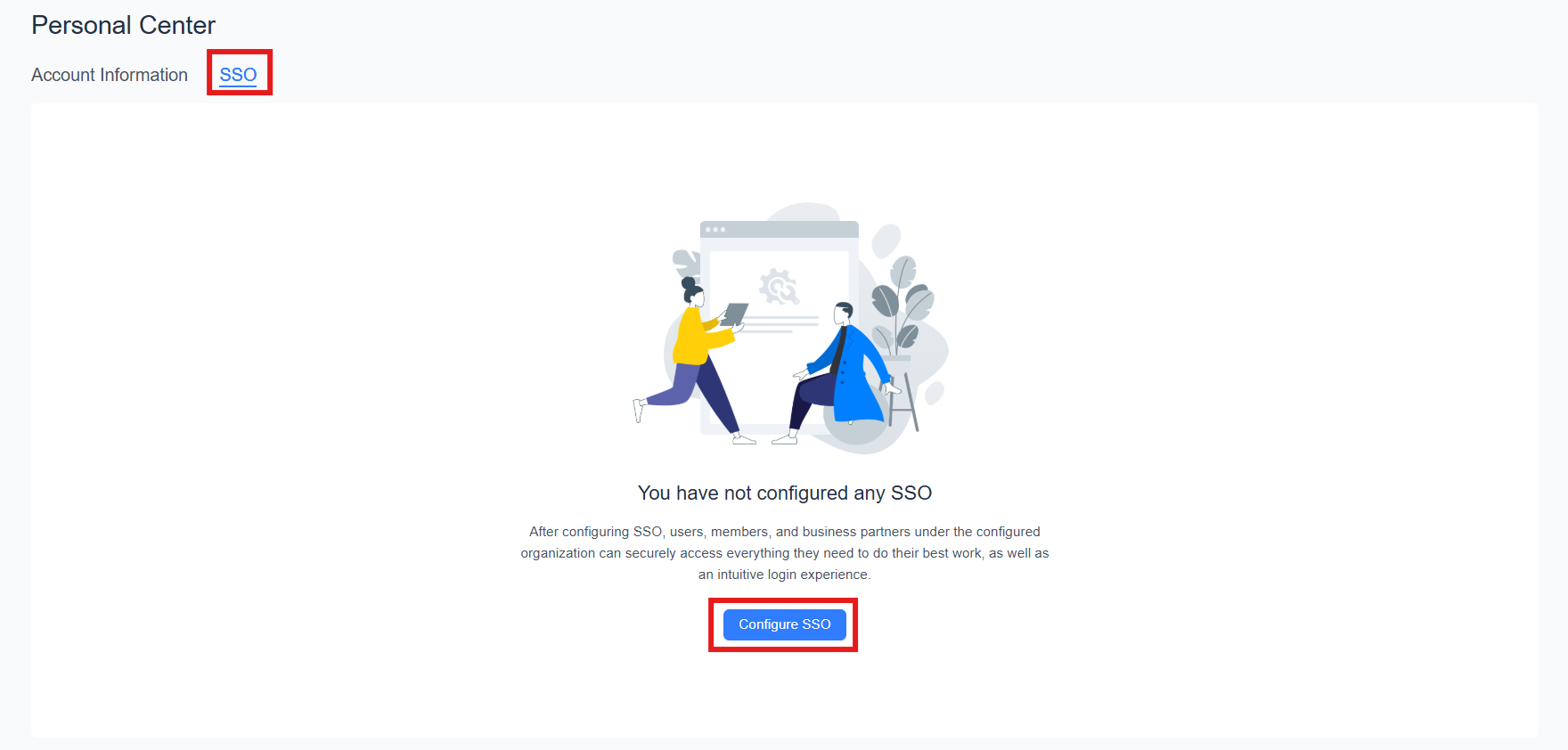
In Personal Center, click SSO, then click Configure SSO.
Copy the SP information on the page and give it to your IdP administrator to create a SAML application in the IdP. Click Copy to copy all of the information at once.
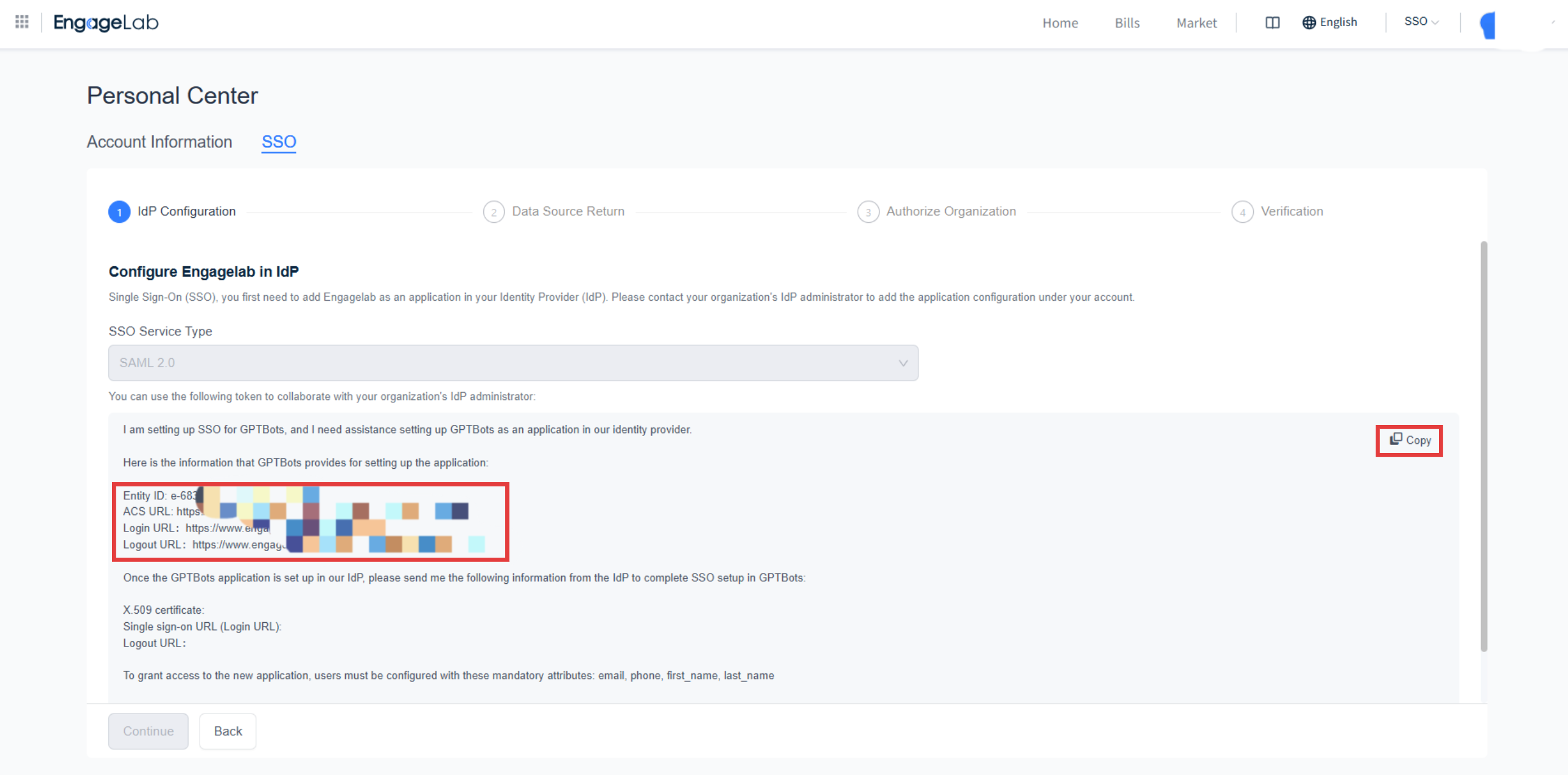
SP Information Description Common field names in the IdP Entity ID The unique identifier of EngageLab as the SP Identifier (Entity ID), Audience URI, SP Entity ID ACS URL The URL that receives the SAML assertion returned by the IdP Reply URL (Assertion Consumer Service URL), Single sign-on URL, ACS URL Login URL The EngageLab SSO login entry Sign on URL, Start URL Logout URL The EngageLab logout URL Logout Url, Single Logout URL Following the User Identification Rules, confirm that the IdP application returns an email attribute, and add an attribute named
emailif it does not by default. Then assign the members who need to log in to EngageLab to the application.Ask your IdP administrator for the following information, which you will enter in the next step:
IdP Information Description X.509 Certificate The IdP's signing certificate, in Base64 format. The certificate has a validity period and must be updated before it expires IdP Login URL The IdP's single sign-on URL IdP Logout URL The IdP's single logout URL After the IdP configuration is complete, select the confirmation checkbox at the bottom of the page (confirming that the EngageLab application information has been updated in the IdP), and click Continue.

Detailed configuration steps for common IdPs:
- Microsoft Azure
- Google Admin
- Okta, OneLogin, and other IdPs: Enter the SP information into the corresponding fields according to the table above, and add the
emailattribute following the User Identification Rules.
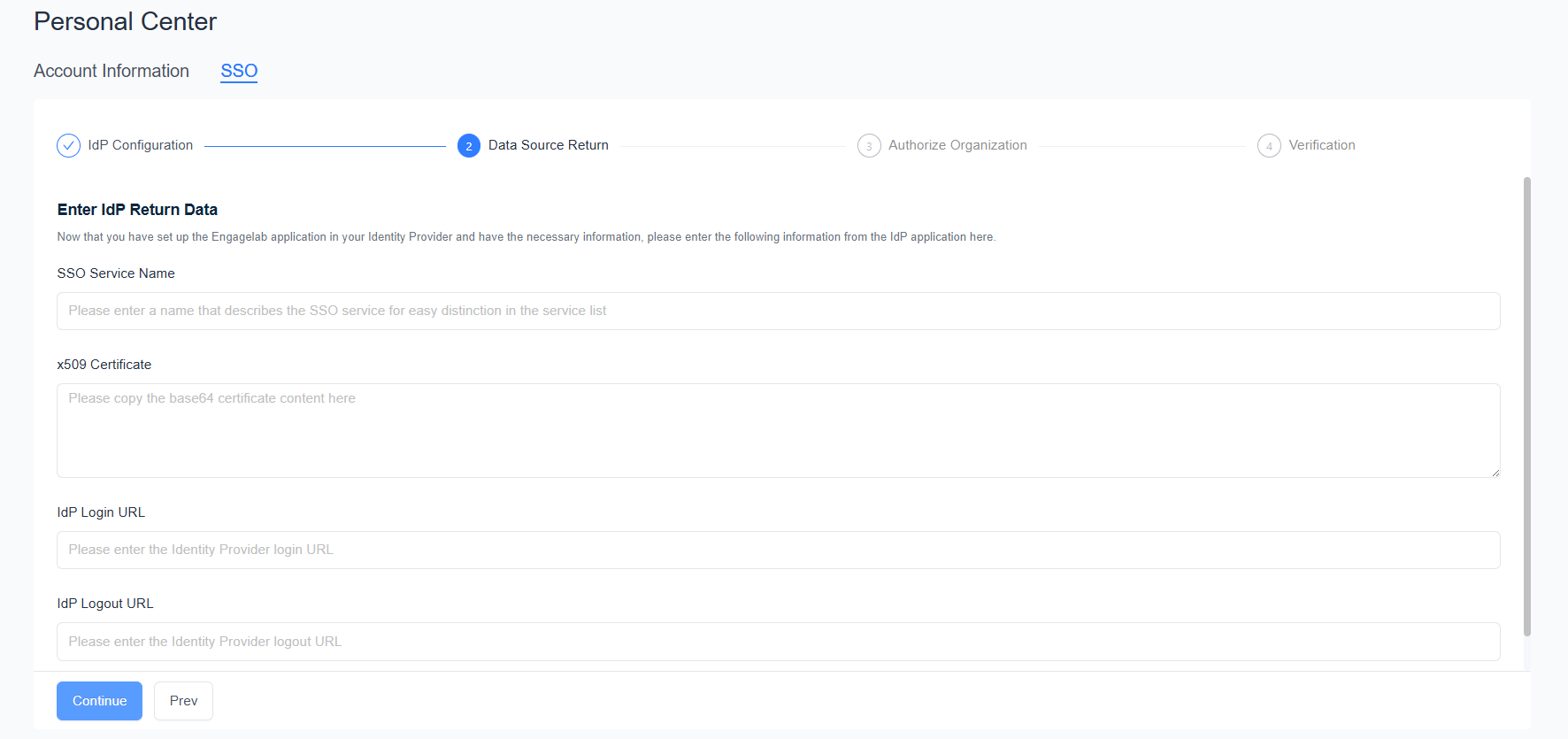
Step 2: Enter Information Returned by IdP
- Enter the SSO Service Name, which is used to distinguish services in the SSO service list.
- Enter the x509 Certificate, IdP Login URL, and IdP Logout URL provided by the IdP. Paste the full Base64 content of the certificate.
- Click Continue.
Step 3: Authorize Organizations
Select the organizations that will use SSO, and click Save and Verify.
- One SSO service can be authorized to multiple organizations, and one organization can be authorized for multiple SSO services.
- You can only select organizations that you created and that have SSO benefits. Organizations marked No Rights or Restricted (SSO protocol limit exceeded) cannot be selected. Please contact sales.
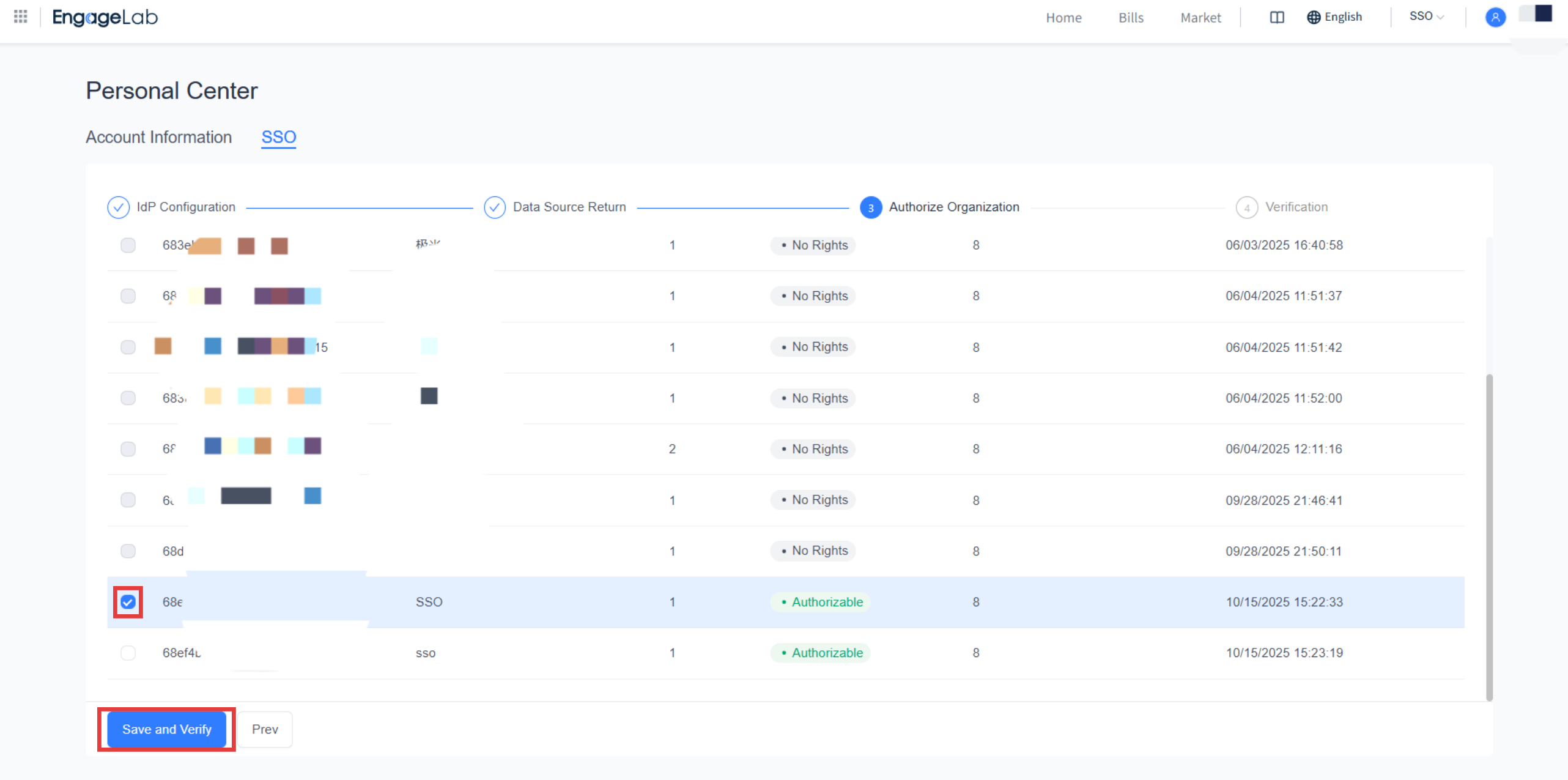
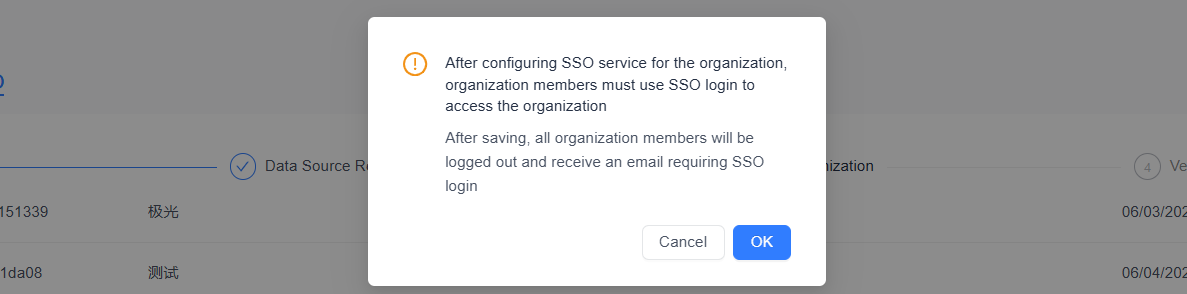
Confirm in the confirmation dialog.
Important: After saving, all members of the selected organizations will be logged out and will receive an email requiring SSO login. From then on, members must use SSO login to access the organization.
Step 4: Verify SSO Service
Use the SSO Login URL on the page to test login. The test account must meet the following requirements:
- It has joined an organization authorized for the SSO service.
- It has been assigned to the SAML application in the IdP.
- The email attribute value returned by the IdP matches the account's EngageLab email.
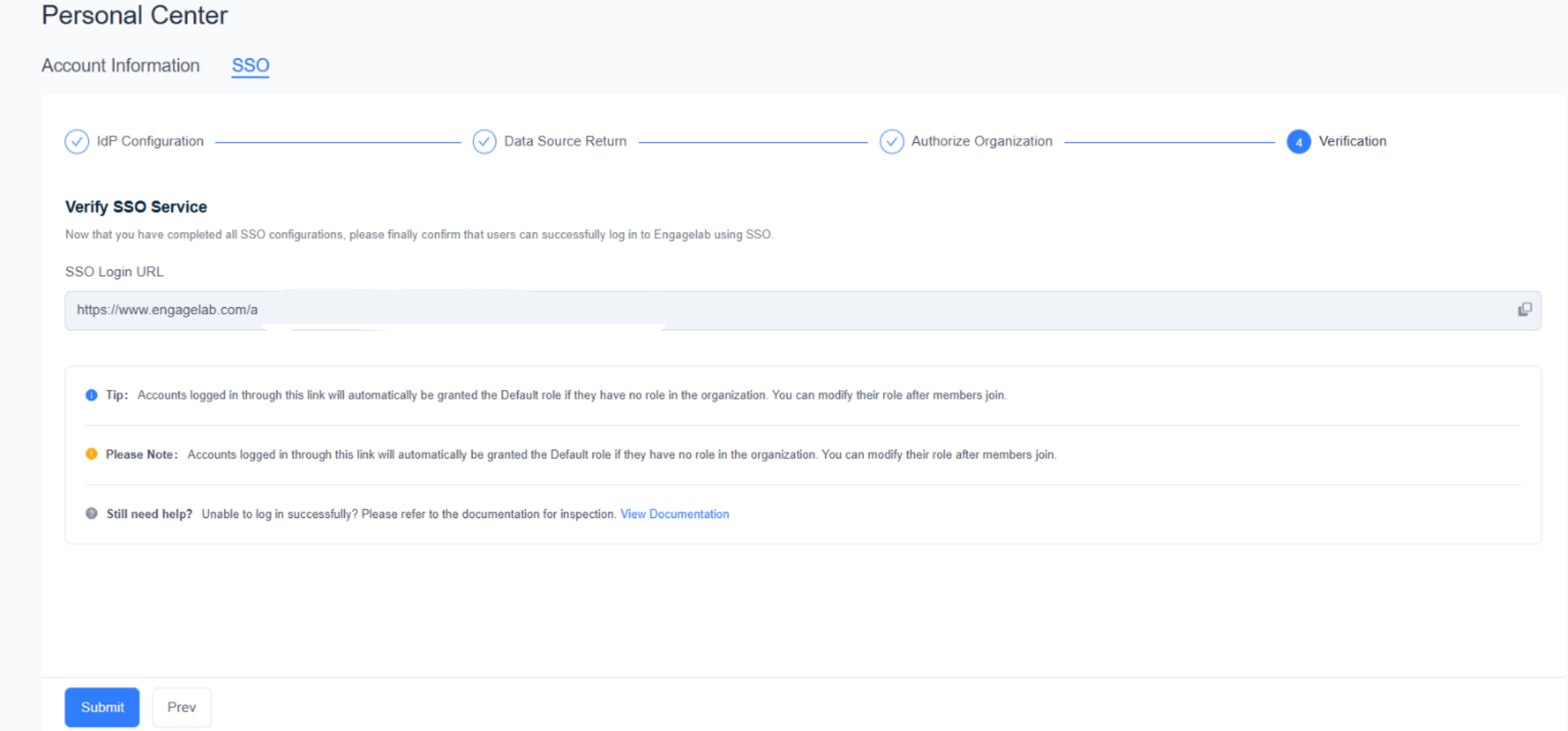
Note: An account that logs in through an SSO login link and has no role in the organization is automatically granted the Default role. After the member joins, you can change their role in the organization's member management.
User Access Rules
| Scenario | Rule |
|---|---|
| Regular organization | All members access through regular login |
| SSO organization | Members can only access through SSO login. The organization creator can use either regular login or SSO login |
| Account logged in with SSO | Cannot create new organizations |
| Entering through SSO Login on the EngageLab login page with an unregistered email | Login is denied |
| Entering through a dedicated SSO login link with an unregistered email | An account is created automatically |
After an account logs in through an SSO service, the system records the binding between the account and that SSO service. A binding is created in any of the following ways:
- Clicking the SSO login link in the "Invitation to Join Organization" email.
- Clicking the SSO login link in the "Organization Enabled SSO Service" notification email.
- Using the dedicated login link of the SSO service.
Manage SSO Services
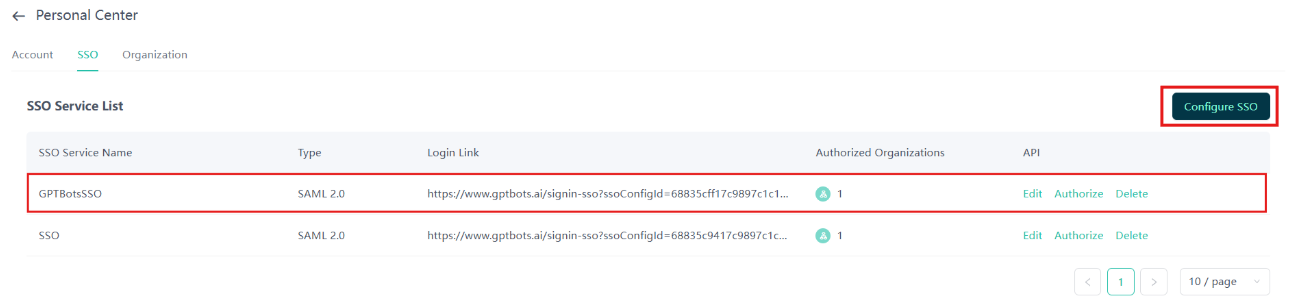
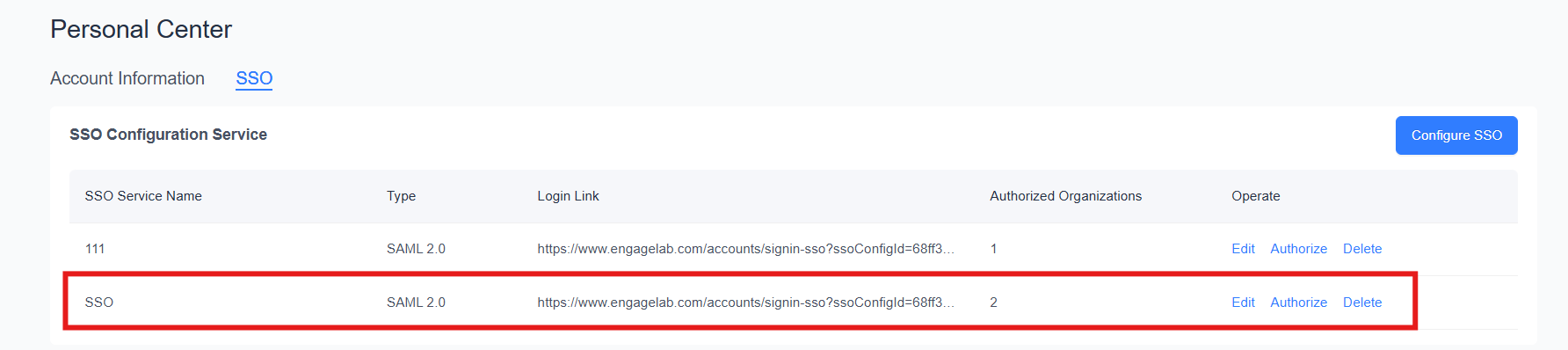
View configured SSO services in Personal Center > SSO.
| Field | Description |
|---|---|
| SSO Service Name | The name entered during configuration |
| Type | The SSO protocol type, currently SAML 2.0 |
| Login Link | The dedicated login link of the SSO service |
| Authorized Organizations | The number of authorized organizations. Hover to view the organization list |
| Actions | Edit, Authorize, Delete |

View and Edit
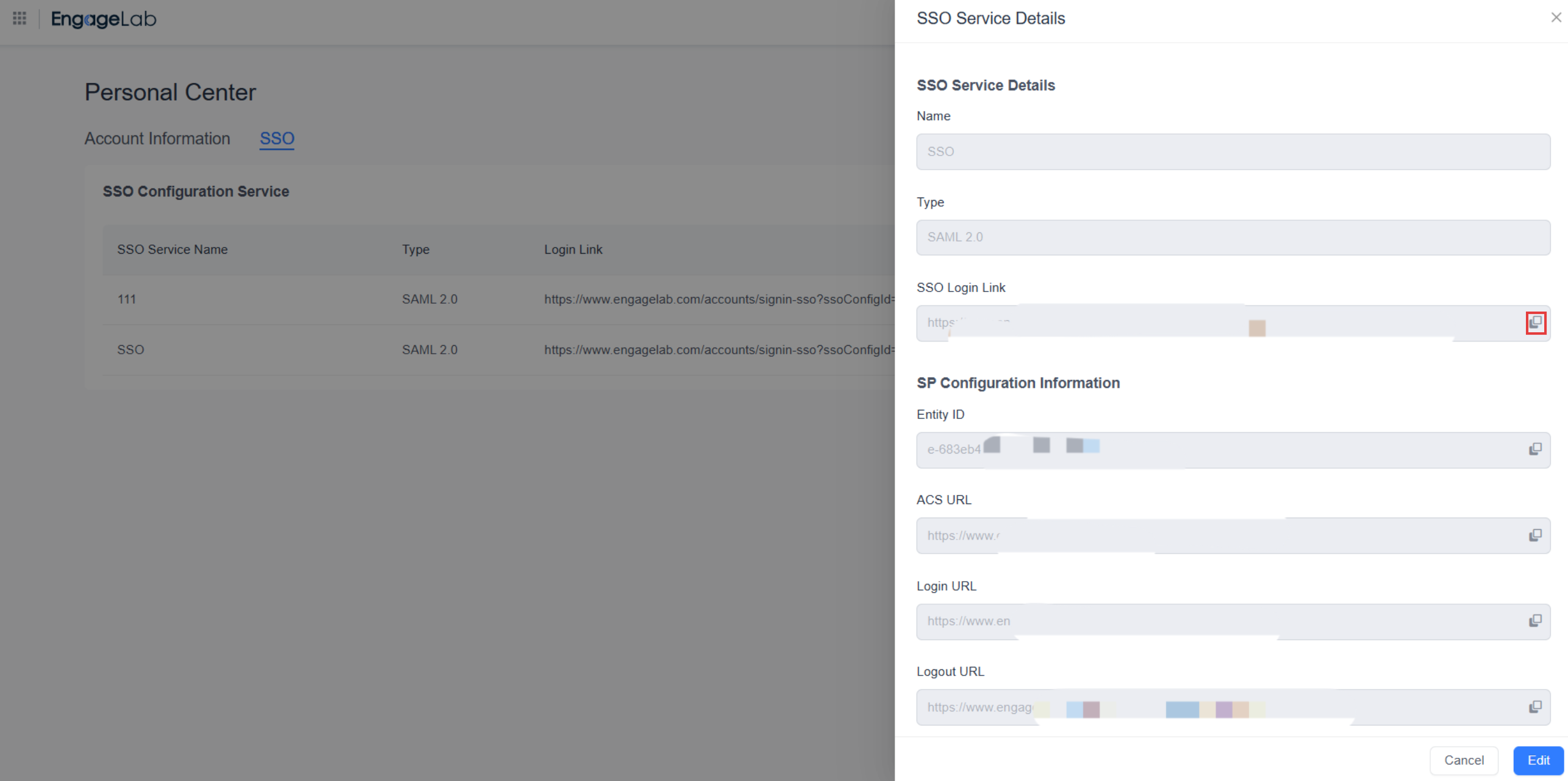
Click a row or Edit to open SSO Service Details. The details show the SP configuration information and the IdP configuration information. Click the button to the right of a field to copy its content.
- Only the IdP configuration information (x509 Certificate, IdP Login URL, IdP Logout URL) can be modified. Other fields are read-only.
- The details show the certificate expiration date. After the IdP replaces its certificate, update it here promptly. Otherwise, members will be unable to log in.
Change Authorized Organizations
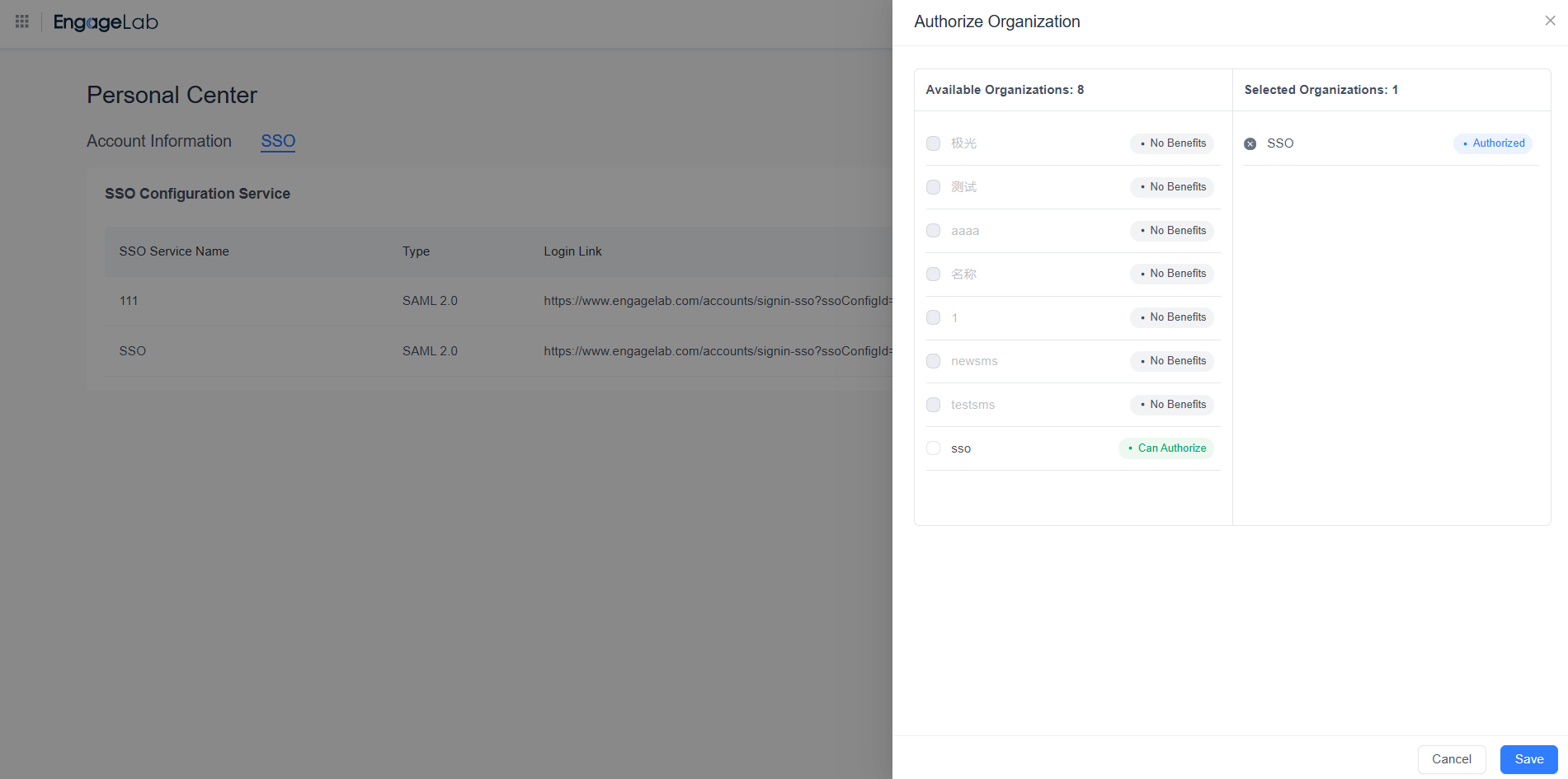
Click Authorize, select organizations on the left, review the authorized organizations on the right, and click Save.
- Newly authorized organizations: All members receive a reminder email containing the login link of the SSO service, requiring them to log in through that service.
- Deauthorized organizations: All members receive a reminder email stating that they can no longer log in through the SSO service, along with the other login methods supported by the organization.
Delete
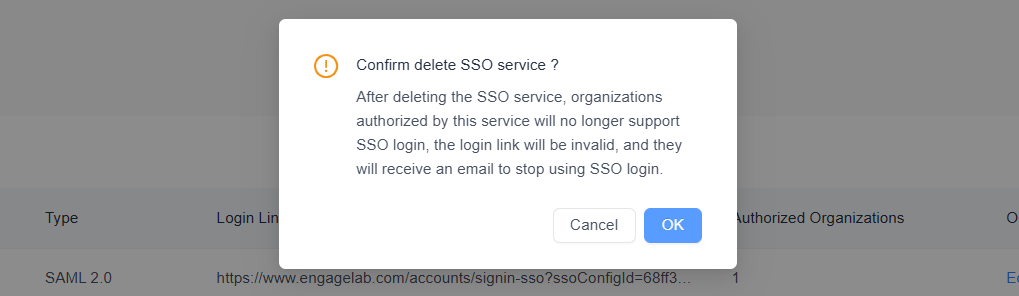
Click Delete and confirm.
Important: After deletion, the organizations authorized for this service can no longer use it for SSO login, the login link becomes invalid, and organization members receive an email stating that SSO login has been discontinued.
Member Login
Log In from the EngageLab Login Page
Open the EngageLab login page and click SSO Login.
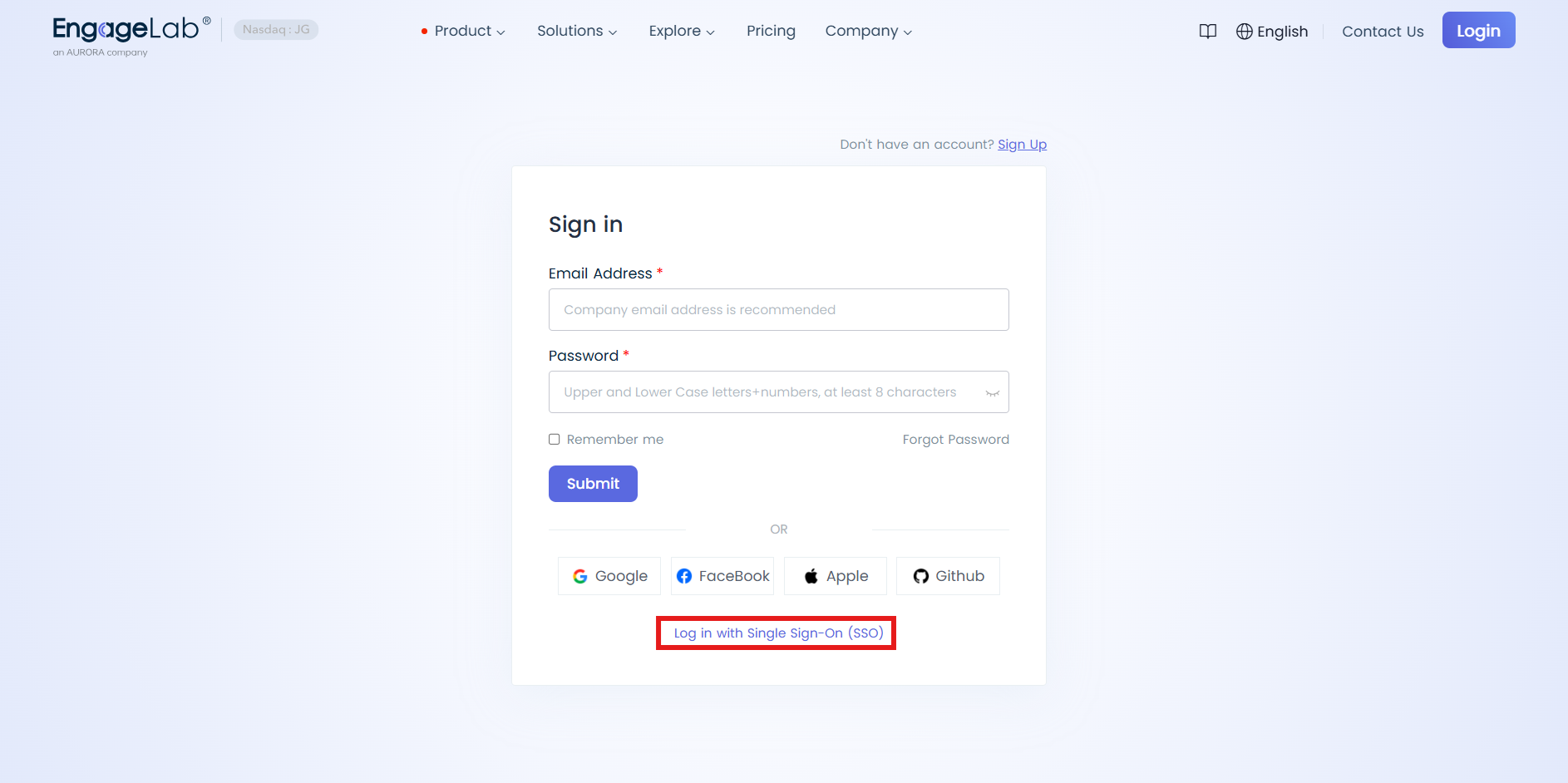
Enter your EngageLab account email. The system selects the SSO service based on the SSO organization the account accessed most recently:
- If the organization has only one SSO service, you are redirected to the IdP directly.
- If the organization has multiple SSO services and the account is bound to more than one of them, select the service to use.
After completing authentication on the IdP page, you are automatically returned to EngageLab and logged in.
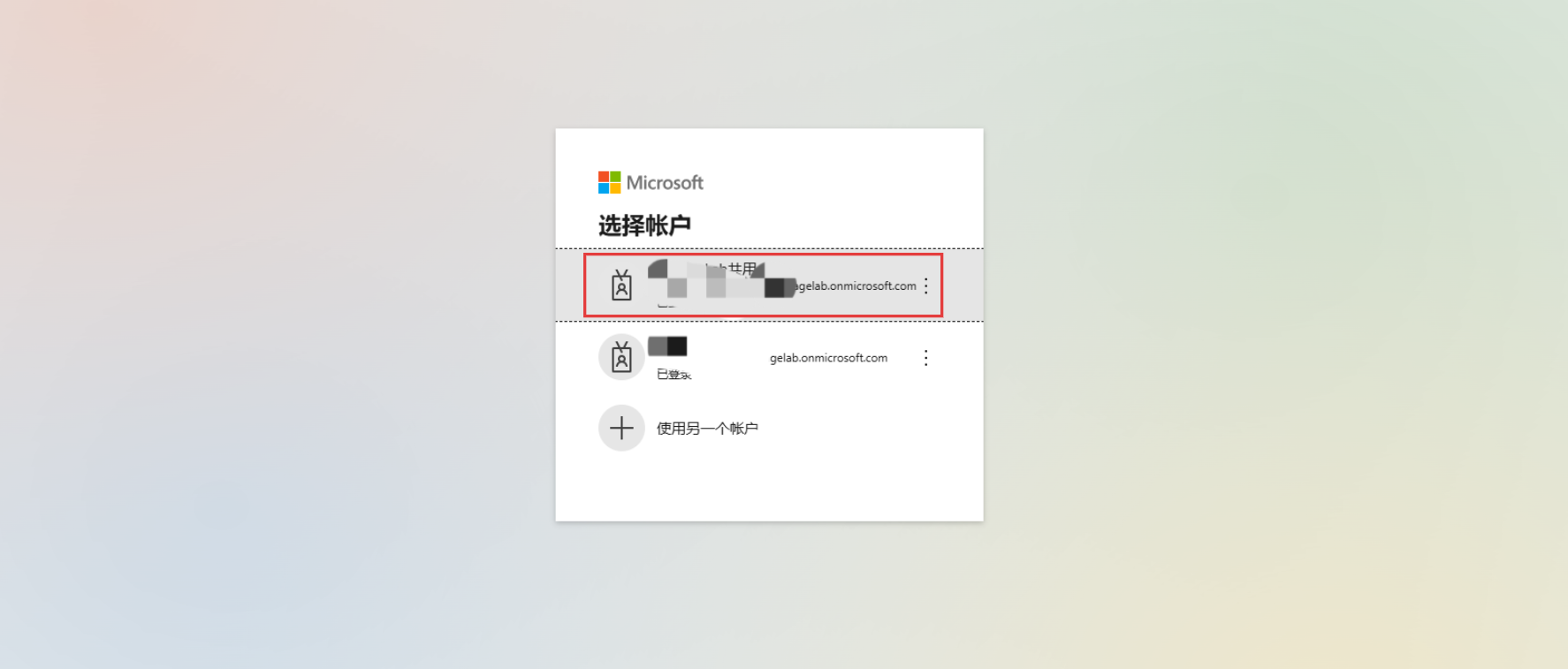
Use a Dedicated SSO Login Link
The organization creator can copy the login link of an SSO service in Personal Center > SSO and send it to organization members.
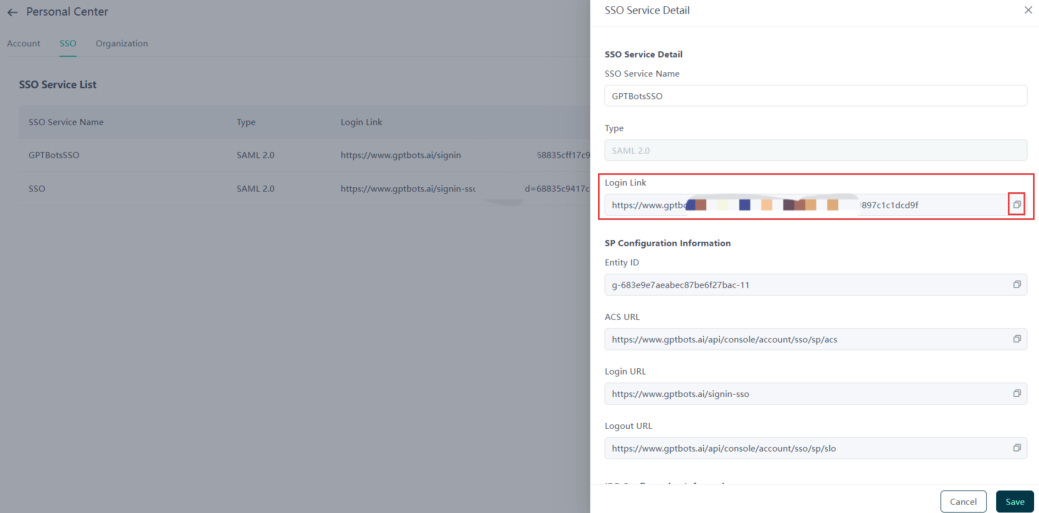
After clicking the link, members are redirected to the IdP for authentication. After successful authentication, EngageLab matches the account using the email returned by the IdP:
| Situation | Result |
|---|---|
| The account has permissions in an organization authorized for the SSO service | Enters the most recently accessed SSO organization |
| The email is not registered with EngageLab | An account is created automatically, and the personal information configuration page opens |
| The account is registered but does not belong to any organization authorized for the service | A prompt asks the user to contact the administrator for authorization. If the account belongs to other organizations, the organization list opens; after selecting an organization, log in using that organization's login method |
Note: To access an organization through an SSO login link, contact the organization administrator to add your email to the SSO organization.
Troubleshoot Login Failures
| Symptom | Possible cause | Solution |
|---|---|---|
| Account does not exist | Entered through SSO Login on the login page, but the email is not registered with EngageLab | Check that the email is correct, or log in with a dedicated SSO login link, which creates the account automatically |
| Email mismatch | The entered email differs from the email attribute value returned by the IdP | Check the email configured in the IdP account. If in doubt, contact your IdP administrator |
| IdP authentication succeeds, but EngageLab login fails | The IdP did not return an email attribute, or the returned email is empty | Ask your IdP administrator to check the Attribute Statement according to the User Identification Rules |
| The IdP page shows an error and authentication fails | The account is not assigned to the SAML application in the IdP | Ask your IdP administrator to assign the account to the application |
| Organization has not enabled SSO | The organization has not been authorized for an SSO service | Ask the organization creator to authorize an SSO service for the organization |
| Login worked before but now fails | The IdP certificate has expired or been replaced | Update the x509 Certificate in the SSO service details |
Log Out
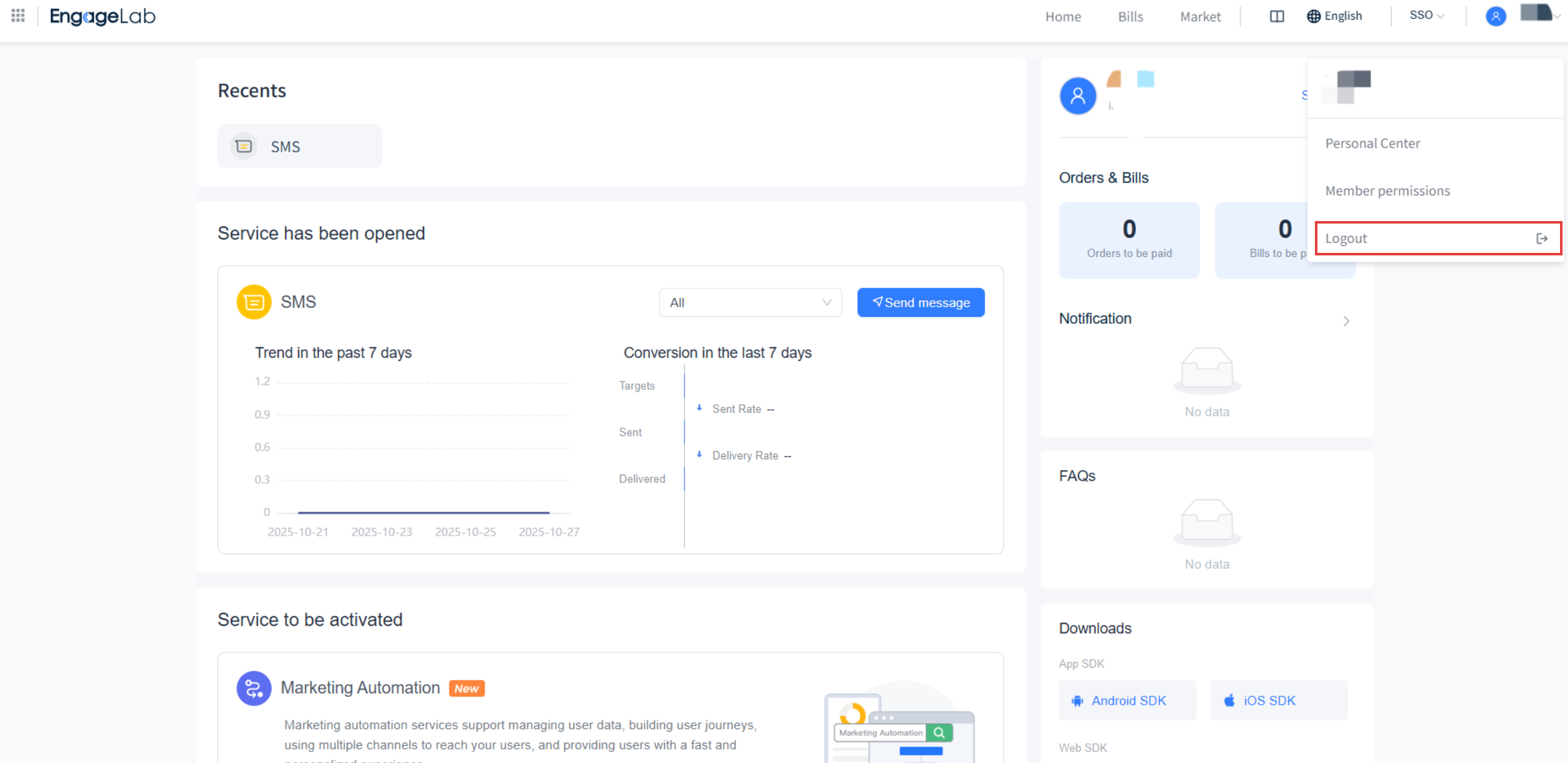
When you log out while logged in with SSO, the system calls the IdP's logout URL and also ends your IdP session. You must authenticate with the IdP again the next time you log in.
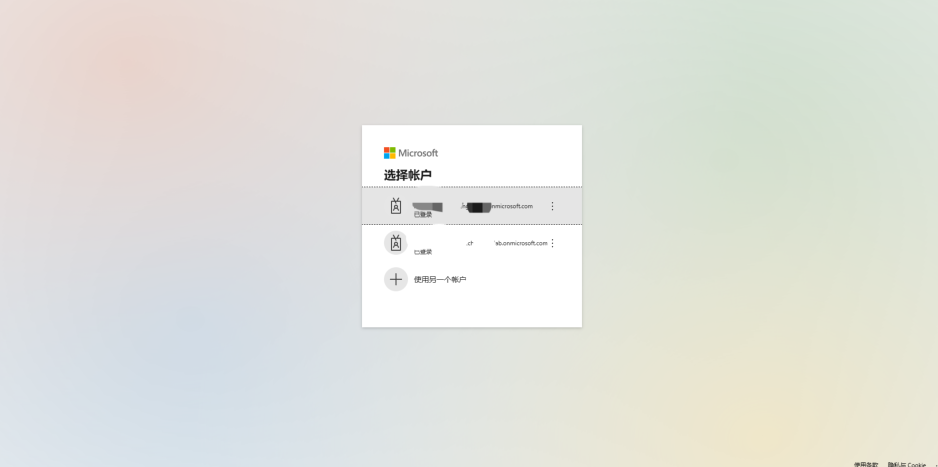
Note: Some IdPs, such as Google Workspace, do not support single logout. In that case, you need to log out manually on the IdP side. See Google Admin.
